Maestro integration
Radon IDE integrates with Maestro, enabling you to run your test flows straight from the editor, and instantly see the results both on the simulator and in the console.
Setting up Maestro
For this functionality to work, you need to have Maestro installed and available in PATH. Consult the Maestro docs if you need help with the process.
Testing from the editor
The extension detects YAML files with Maestro syntax and allows to run them in the device preview right from the code. The file will be auto-saved on start.
Running multiple flows
Use the Start Maestro test(s) option from the Tools menu to select multiple files and folders to run tests from. Maestro will automatically choose valid flow files, conduct tests on the device and report the results in the output console.
Aborting flows
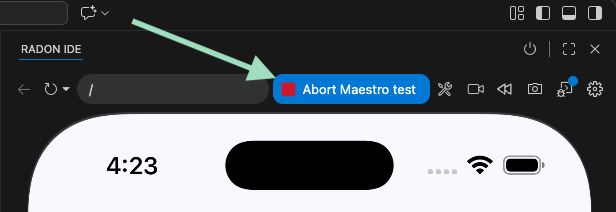
When a flow is started, an indicator button appears on the Radon toolbar. Click this button to abort the test, exiting the Maestro process gracefully.
Troubleshooting
Flows using clearState fail on Android
On Android, maestro flows which use the clearState command
or set the clearState flag in the launchApp command
may fail to connect to the Metro server.
In that case, you can set the metroPort to "8081" in your Radon launch configuration
to ensure the Metro server runs on the default port the application tries to connect to.