Radon AI
Radon AI is a MCP server that provides a set of tools that enhances your editor’s Agent. It provides up-to-date knowledge of the React Native ecosystem, access to a comprehensive set of debugging data that is otherwise unavailable, and the ability to interact directly with your app.
We index most React Native libraries along with their relevant documentation, versions, APIs, configuration details and usage patterns to provide additional and accurate context for your Agents.
Our knowledge database is updated daily to provide the most up-to-date information.
Pre-requisites
- Cursor Editor or Visual Studio Code 1.99 or newer
- In Visual Studio Code: Access to GitHub Copilot and GitHub Copilot Chat. GitHub Copilot Chat comes with a GitHub Copilot Free without needing to sign up for another subscription.
- An active Radon IDE license
Usage in Visual Studio Code
Radon AI assistant integrates with VSCode's agent mode.
To access agent mode in Visual Studio Code use Ctrl + Shift + I or Cmd + Shift + I.
Alternatively, open VSCode Command Palette (Ctrl + Shift + P or Cmd + Shift + P) and type Chat: Open Chat, then select agent mode.

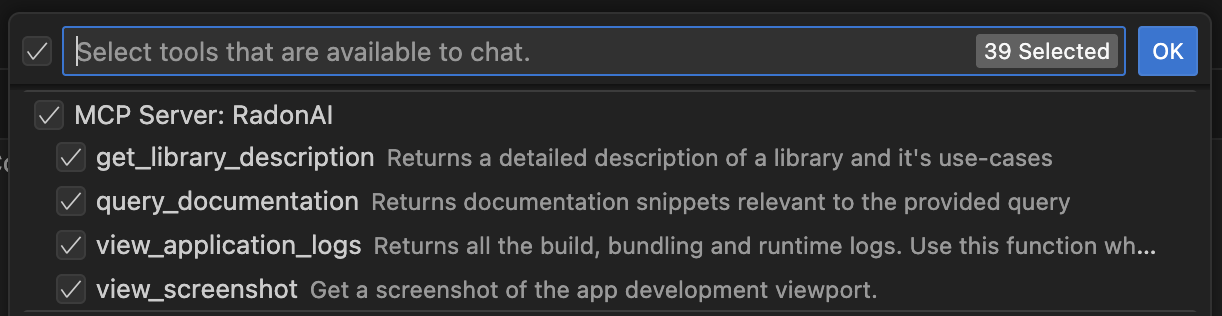
To adjust the configuration of the MCP tools exposed by Radon - choose Configure Tools... menu.
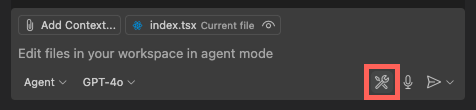
There you can adjust which tools are enabled or disable the Radon AI MCP toolset completely.
Usage in Cursor
Radon AI assistant integrates with Cursor's agent mode.
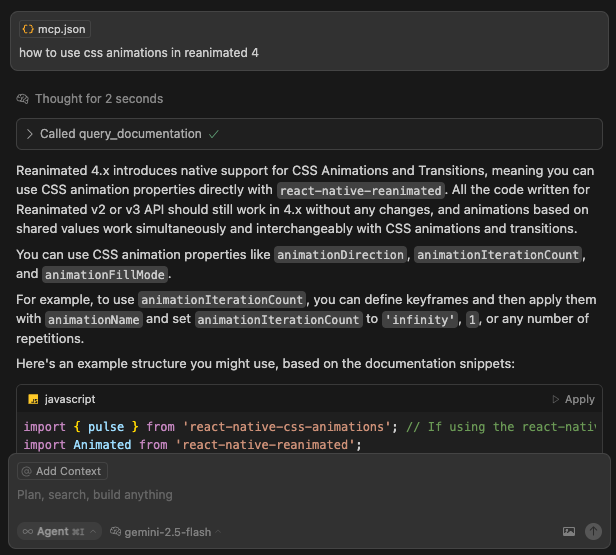
The Radon IDE automatically registers Radon AI tools in Cursor. You configure the Radon AI MCP tools from Cursor Settings. There, you can choose which tools are enabled or disable the MCP Radon toolset completely.
- In Cursor, open
Cursor Settings(Ctrl + Shift + JorCmd + Shift + J). - Navigate to the
Tools & Integrations. - Find the
MCP Toolssection. - Select
Radon AIfrom the list of available toolsets.
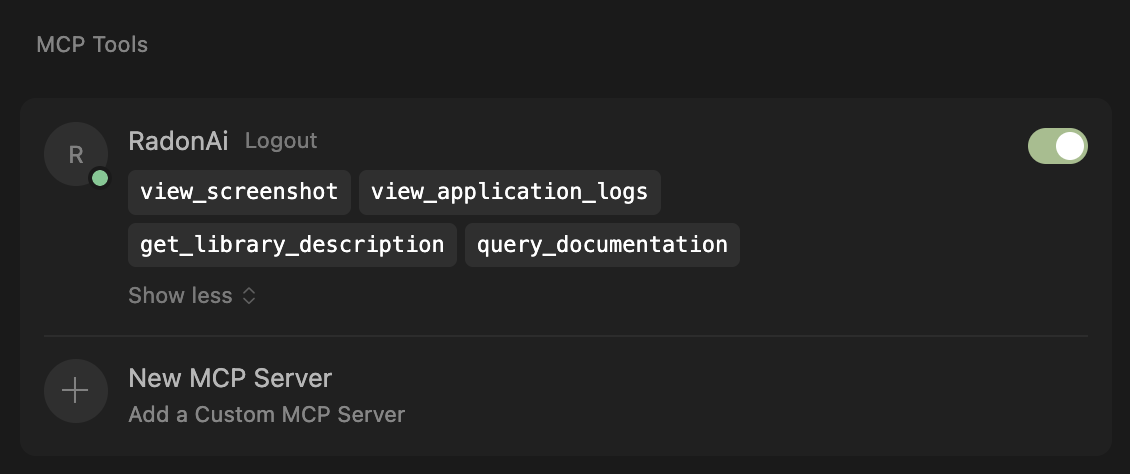
Alternatively, you can type and run View: Open MCP Settings from the Command Palette (Ctrl + Shift + P or Cmd + Shift + P).
Usage in external Agent CLIs
For tools that don't read VS Code or Cursor MCP configurations, you can manually connect to Radon IDE's MCP server using the radon-mcp proxy package. The proxy locates the correct MCP server instance running in Radon IDE for a given workspace.
The workspace path argument is optional. If omitted, the proxy uses the current working directory. If you run the agent from your project folder, you don't need to supply it.
Installation instructions:
Run claude mcp add --transport stdio radon -- npx -y radon-mcp@latest /path/to/your/react-native/project, or add the following to your .mcp.json or ~/.claude.json:
{
  "mcpServers": {
    "radon": {
      "command": "npx",
      "args": ["-y", "radon-mcp@latest", "/path/to/your/react-native/project"]
    }
  }
}
Run codex mcp add radon -- npx -y radon-mcp@latest /path/to/your/react-native/project, or add the following to ~/.codex/config.toml:
[mcp_servers.radon]
command = "npx"
args = ["-y", "radon-mcp@latest", "/path/to/your/react-native/project"]
Add the following to your opencode.json or opencode.jsonc:
{
  "mcp": {
    "radon": {
      "type": "local",
      "command": ["npx", "-y", "radon-mcp@latest", "/path/to/your/react-native/project"]
    }
  }
}
Run gemini mcp add radon npx -y radon-mcp@latest /path/to/your/react-native/project, or add the following to .gemini/settings.json (project scope) or ~/.gemini/settings.json (user scope):
{
  "mcpServers": {
    "radon": {
      "command": "npx",
      "args": ["-y", "radon-mcp@latest", "/path/to/your/react-native/project"]
    }
  }
}
Add the following to ~/.config/goose/config.yaml:
extensions:
  radon:
    name: Radon
    cmd: npx
    args: [-y, radon-mcp@latest, /path/to/your/react-native/project]
    enabled: true
    type: stdio
Run amp mcp add radon -- npx -y radon-mcp@latest /path/to/your/react-native/project, or add the following to ~/.config/amp/settings.json:
{
  "amp.mcpServers": {
    "radon": {
      "command": "npx",
      "args": ["-y", "radon-mcp@latest", "/path/to/your/react-native/project"]
    }
  }
}
Run kiro-cli mcp add --name radon --command npx --args "-y radon-mcp@latest /path/to/your/react-native/project", or add the following to ~/.kiro/settings/mcp.json (global) or <project-root>/.kiro/settings/mcp.json (workspace):
{
  "mcpServers": {
    "radon": {
      "command": "npx",
      "args": ["-y", "radon-mcp@latest", "/path/to/your/react-native/project"]
    }
  }
}
Available tools
The AI models automatically discover and invoke tools when they decide it will be useful. You can query the agent to use the tool by mentioning it's name in the prompt. These are currently available tools in Radon AI:
get_library_descriptionProvides a detailed description of a library and its use cases.query_documentationRetrieves documentation snippets relevant to a provided query.reload_applicationTriggers reload of the application. The AI may choose whether to restart the application process, reload just the JS bundle, or rebuild the entire app.view_application_logsReturns all the build, bundling and runtime logs available to Radon IDE. If the app builds and launches successfully, this tool will also attach a screenshot of the app.view_screenshotCaptures a device preview screenshot. Can help the agent with debugging issues and making UI adjustments. Currently only supported in GPT, Gemini and Claude models.view_component_treeDisplays the component tree of the running app. This tool allows the agent to gain a broad understanding of the project's structure.view_network_logsShows all network requests your app makes. Helps the agent debug API issues and verify backend communication.view_network_request_detailsInspects full details of a specific network request. Enables the agent to investigate why an API endpoint is failing or returning unexpected data.
Limitations
-
Like any technology based on large language models, responses augmented by Radon AI are still prone to errors. Make sure to check important information before making decisions.
-
The knowledge base used by Radon AI contains only documentation files. While some documentation pages contain code snippets, we do not index the full source code of the libraries.
-
Both GitHub Copilot and Cursor offer limited free plans that allow you to try Radon AI. Once you reach certain limits, you will need to upgrade to paid plans to continue using Radon AI.
Disabling Radon AI
To disable Radon AI assistant navigate to the editor settings.
You can type Preferences: Open User Settings in the Command Palette (Ctrl + Shift + P or Cmd + Shift + P).
Within editor settings, type Radon AI: Enabled, press the first result and select Disabled.
Privacy
To provide accurate responses, queries that you type to Radon AI chatbot along with the list of your project dependencies are sent to our servers in order to search our knowledge database. The data that is sent is not stored in any form on our servers but only used for the duration of the request in order to perform the query.