View Hierarchy Inspector
Radon IDE comes with a Native View Hierarchy Inspector panel for iOS, allowing you to explore the native UIKit view tree of your running application.

 iOS only
The Native View Hierarchy Inspector is currently available for iOS Simulator only.
Enabling the View Hierarchy Inspector
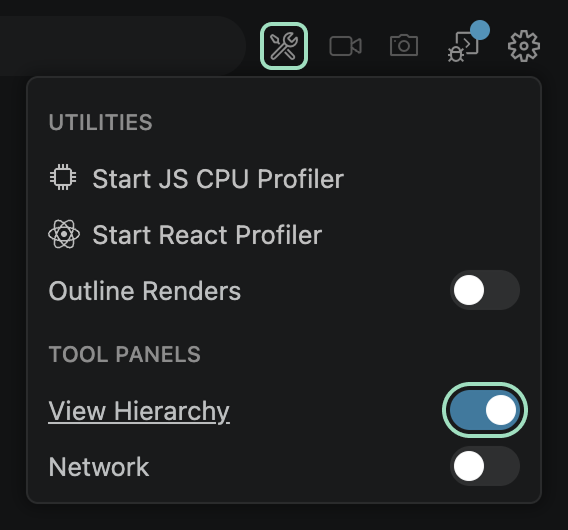
To enable the View Hierarchy Inspector tab, first click the Tools button located on the top-right corner of the IDE. Then, enable the toggle next to the View Hierarchy label. A new View Hierarchy tab will appear in your editor.
If you hide the View Hierarchy panel, you can reopen it by using the Link icon next to the View Hierarchy label.
Using the View Hierarchy Inspector
Once the tab is open, it automatically fetches and displays the native UIKit view hierarchy of your running application.
You can control the inspector using the two toolbar buttons:
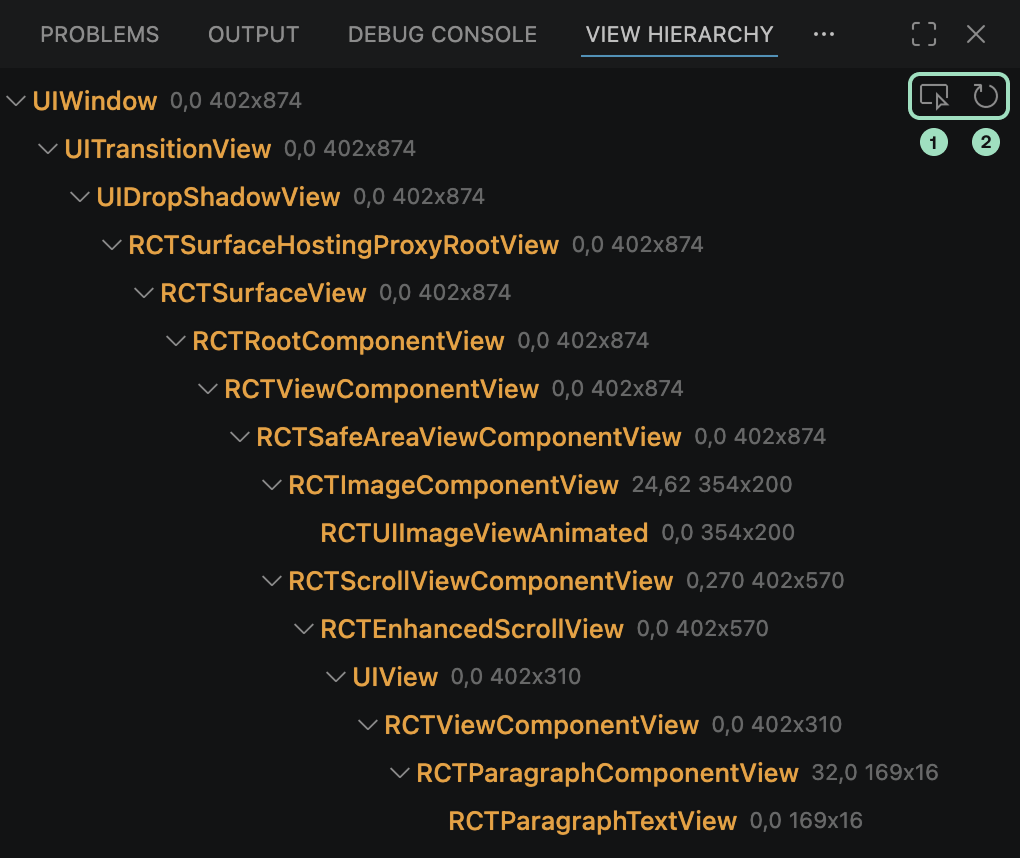
- Pick element — activates pick mode, letting you tap on the device preview to select a view and reveal it in the tree.
- Reload hierarchy — re-fetches the view tree from the running app and refreshes the panel.
Exploring the view tree
The inspector displays the native view hierarchy as a collapsible tree. Each node represents a single UIView and shows:
- Class name — the UIKit class of the view (e.g.
RCTView,UILabel). - Identifier — the
accessibilityIdentifieror React NativenativeIDprop, prefixed with#, when present. - Frame — the view's position (
x,y) and size (width × height) in its parent coordinate space. hiddenbadge — shown when the view hashidden = true.alphabadge — shown when the view has a non-opaque alpha value (e.g.alpha: 0.50).
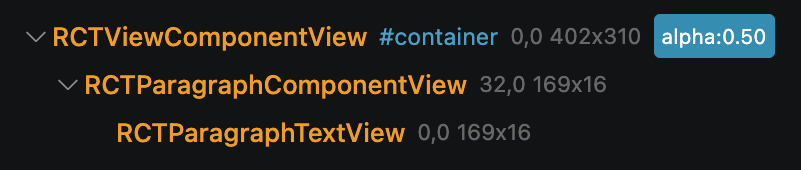
Click on any node that has children to expand or collapse its subtree.
Hovering over nodes
Hovering over a node in the tree highlights the corresponding view directly on the device preview with an overlay, making it easy to identify where a view is rendered on screen.
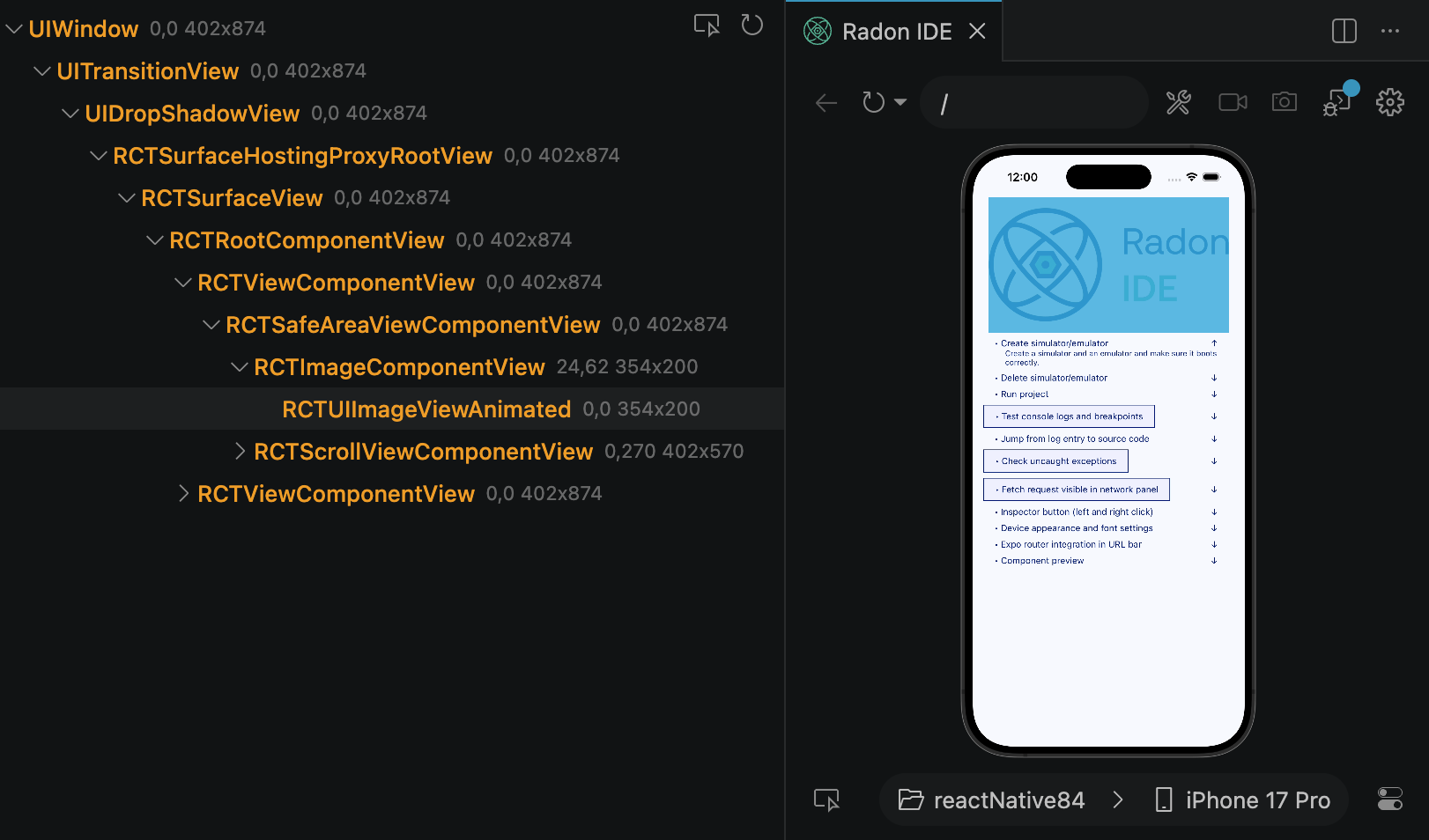
Moving the cursor away from the tree clears the highlight.
Pick mode
Click the Pick element button to enter pick mode. Click anywhere on the preview to select the deepest visible native view at that point.
After picking, the hierarchy is refreshed and the corresponding node is automatically scrolled into view and highlighted in the tree. Pick mode is exited automatically after a selection, or you can press Escape to cancel.